User Guide
Twig from the first run to a daily habit, in the order a day goes: one idea a section, and a link to the reference where the details are.
- The first run
- This device, and Cloud Sync
- Writing on Today
- Tasks and dates
- Estimates
- Focus and the timer
- Pictures, files and code
- Whiteboards
- Pages and their types
- Typed pages from a link
- Cards over links
- Finding things
- The Calendar
- Backlinks
- 750 words
- Share, publish, export
- Assistants
- On a phone and an iPad
- Keys
- Plugins
- When something looks wrong
The first run
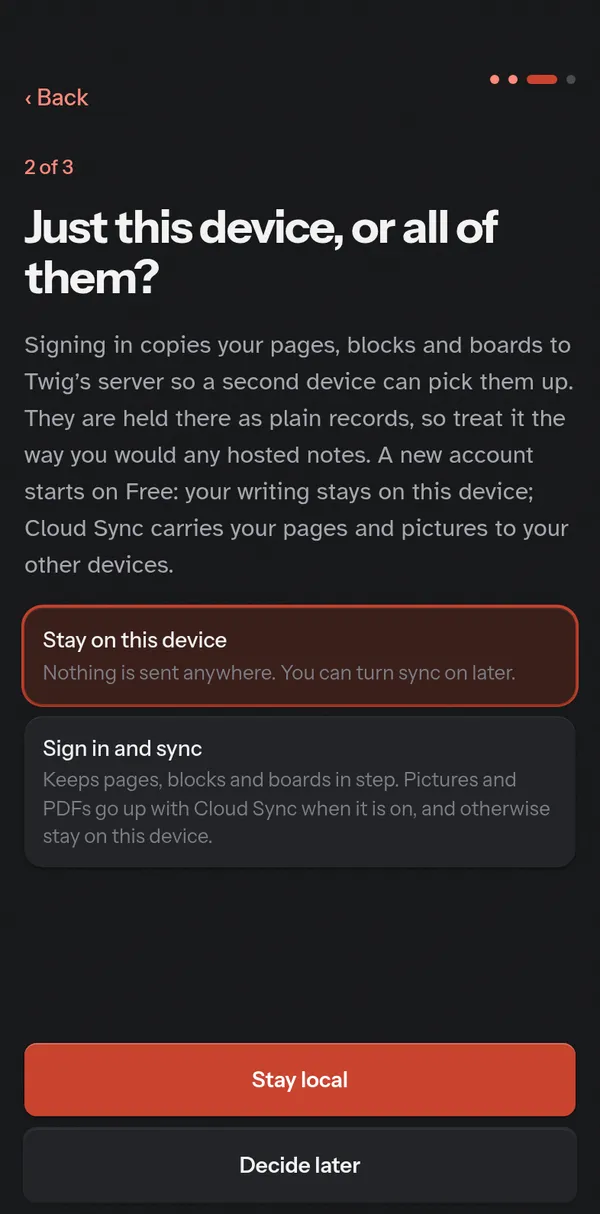
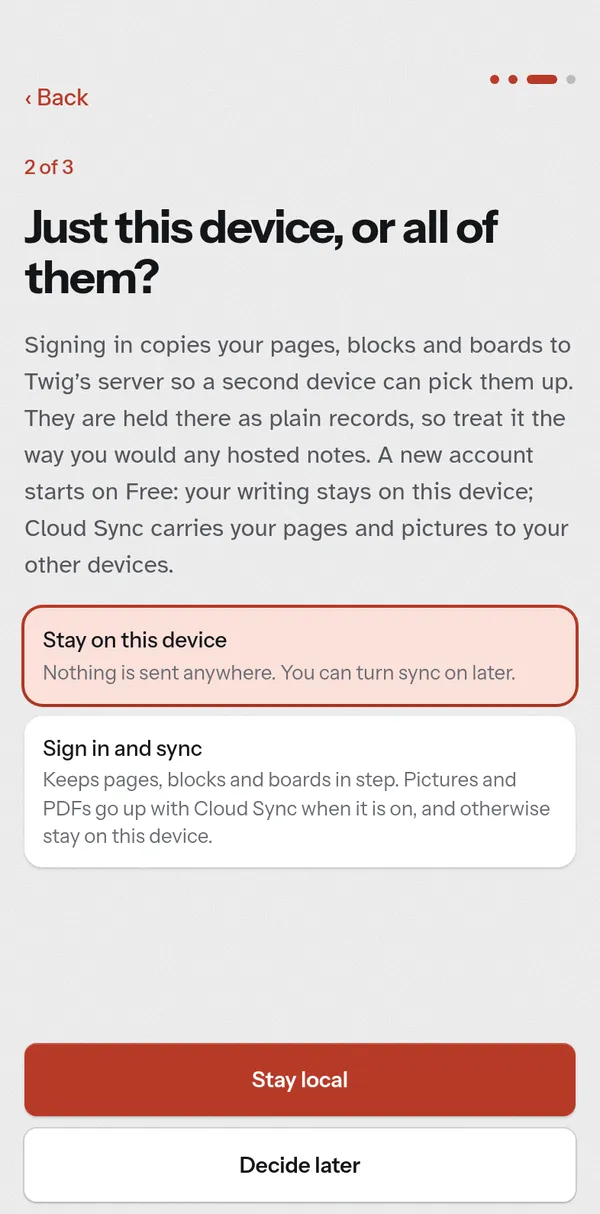
The first screen has one door, start. Behind it are three short steps: how Twig looks (the scheme and the text size, kept on this device and in Settings afterwards), whether to sign in, and today’s page.
Nothing asks for a name or an account: press Stay local, then Open today. If you have pages already, the quieter link under start takes them in, a folder of Markdown (.md) files. Later, Settings › Data takes a folder or a .zip.
This device, and Cloud Sync
Signed out, Twig is whole: pages, tasks, the Calendar, the Graph, plugins and export all work, offline too, and nothing leaves the device. It is all kept in this browser’s storage, so keep a copy now and then with Export a copy, in Settings › Data. Installing Twig (see On a phone and an iPad) makes the browser likelier to keep that storage.
- Signing in
- Settings › Account › Sign in. An account starts on Free, which still keeps everything on the device: what you write waits there, and goes up the day Cloud Sync is on.
- Cloud Sync
- The paid plan, from Cloud backup. Every device the same as you write, files uploaded, a snapshot a day, shared links and a site, the daily digest, and assistants.
- What it costs
- The prices and the room are in the plans table.
The Sync card beside the page says where your writing is: Local only, Backed up and the time, Offline with what is waiting. What each word means.
Writing on Today
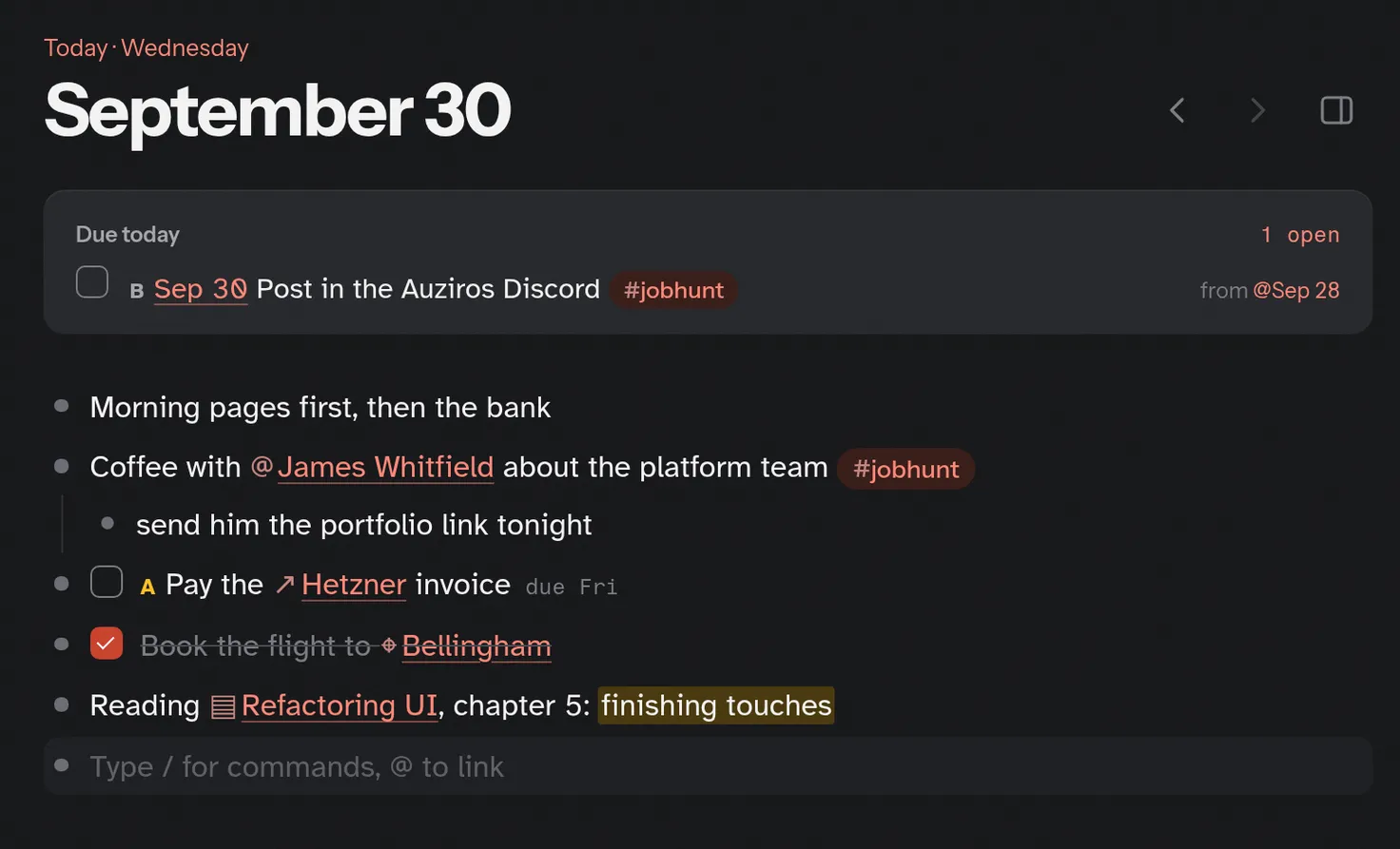
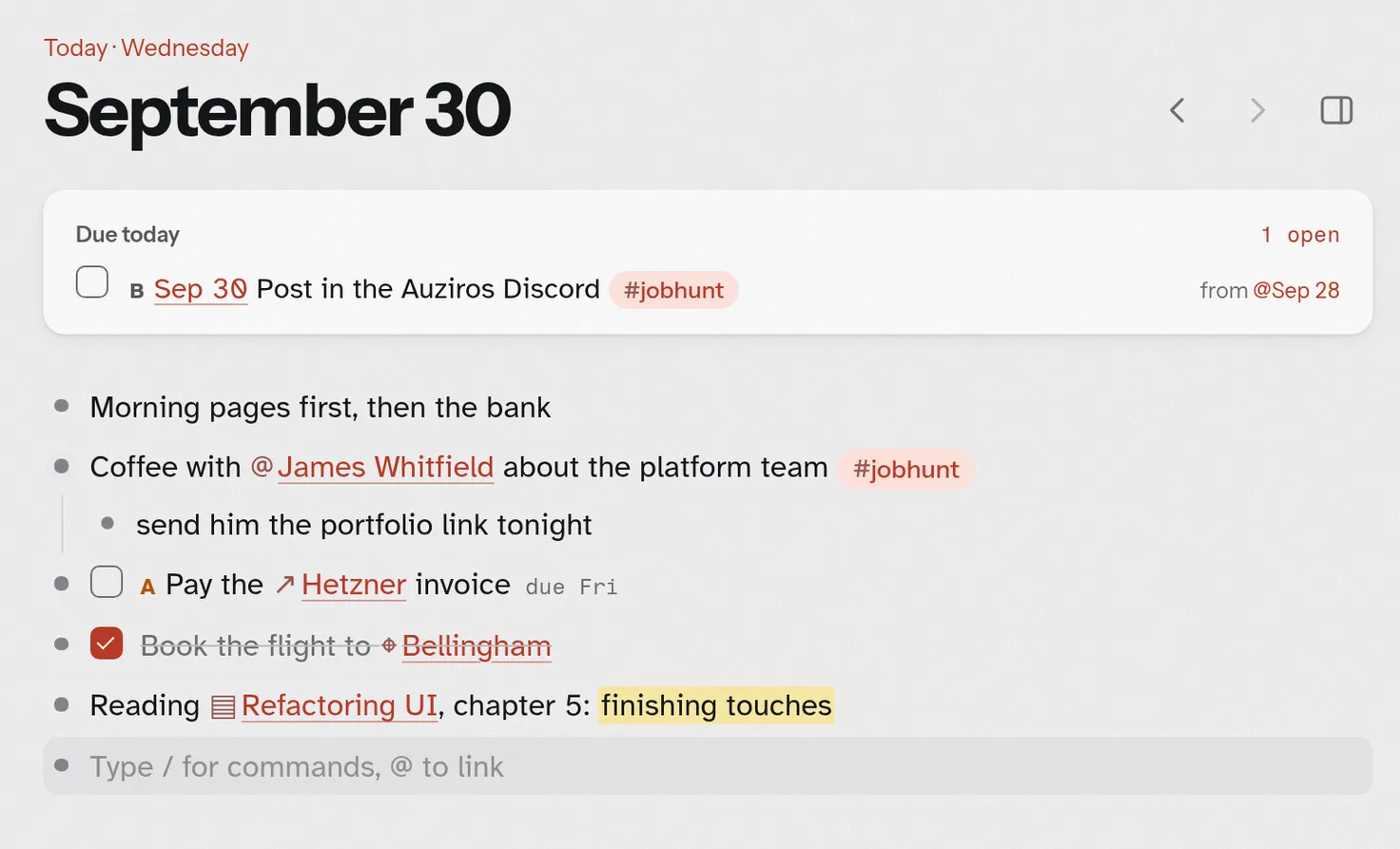
Today opens on today’s page; each day you open Twig gets one. Each line is a block: Enter starts the next, Tab tucks a block under the one above and ⇧Tab brings it back out. The arrows beside the date go a day back or forward.
Three keys open a popup as you type: / for commands, @ to link a page, # to tag one. Keep typing to narrow it; a name no page has yet is offered as a new page.
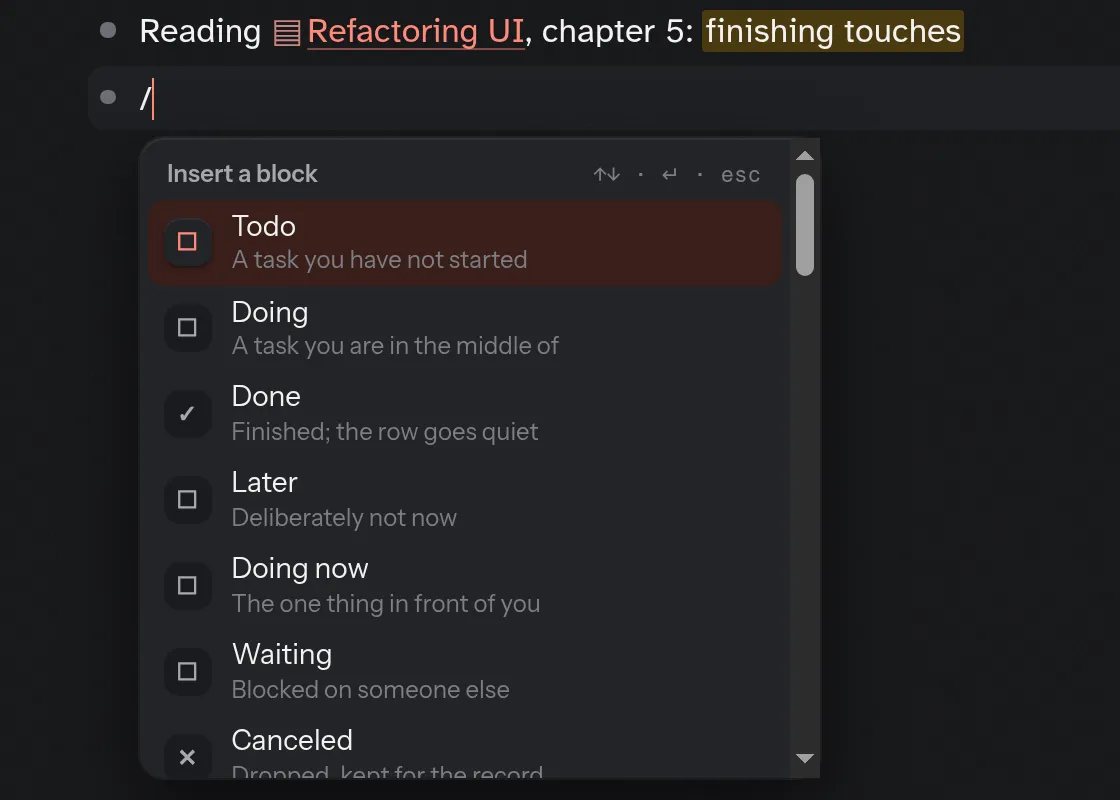
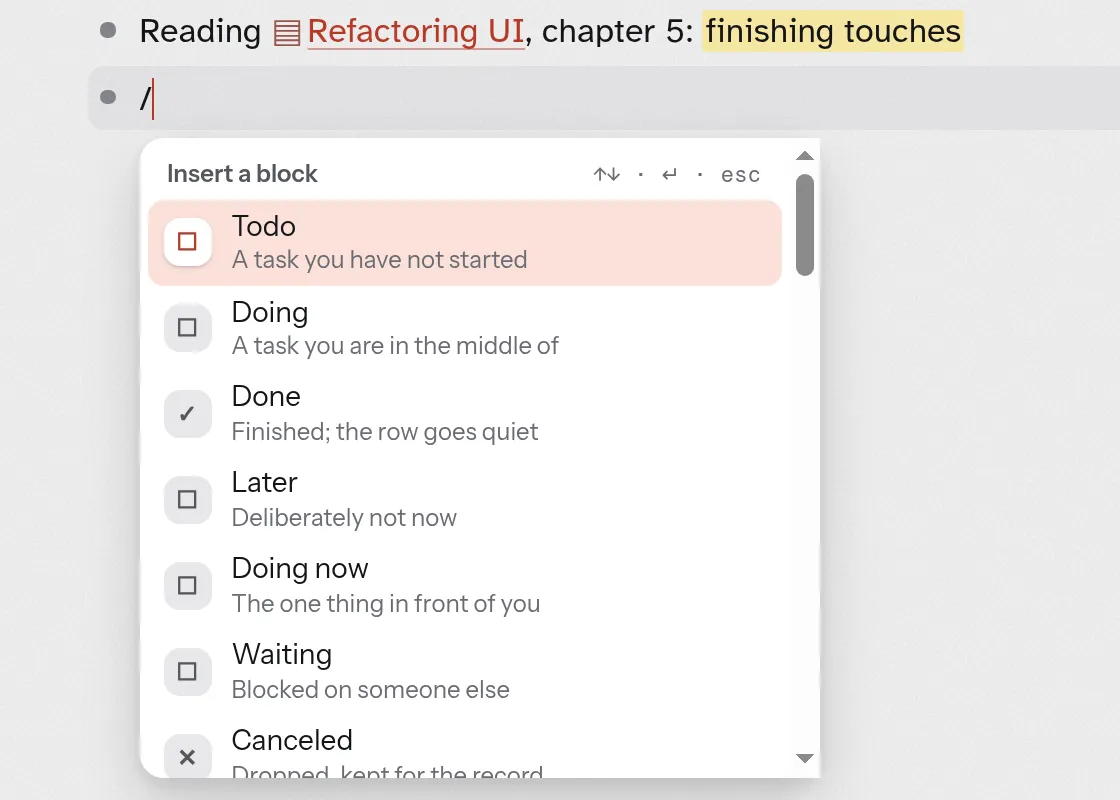
Nothing needs saving: every change is written as you type, and ⌘S only says where the writing is. A block with template:: name among its lines is a template, and from then on the / menu has a row for it, Template: name, that copies it in where you are.
Tasks and dates
/Todo makes a block a task, and ⌘Enter steps it through todo, doing, done and plain again. /Scheduled and /Deadline put a date line under it, today’s to begin with: change it where it stands, or move the task on the Calendar. /Now writes the time: on today’s journal the time alone, since the page already says the day, and the day and the time anywhere else.
/Today and /Tomorrow link a day instead, and a task with a link to a day and no date line is due that day. Today’s card lists what is due today from every page. Tasks lists every open task under Overdue, Today, Later and No date, each row saying whether its day is when it is due, when it starts, or a day it links. How a task’s day is found.
Estimates
Give a task a length with /Estimate, which offers 5, 15, 25 and 45 minutes and an hour, or a length you type after it, as in /Estimate 1h 30m. Or write ~25m in the task itself: when you leave the block the words come out and a line, estimate:: 25m, stays under it. ~1h, ~1h30m, ~90m and ~1.5h work the same. A number alone never counts, a tilde inside code or a link is left as it is, and Undo puts the words back.
The length shows as a small 25m beside the task on Today’s card, on Tasks and on a Board. Once an open task due today has one, the card ends with a line such as 5 open · 2h 05m · ends about 4:35 PM: the open tasks’ lengths added up and counted from now, in your clock and your time zone. A task with no estimate is left out of the sum and counted, as in 2 without an estimate. A template keeps the lengths of its tasks when you insert it.
Focus and the timer
Press Focus on a task, on Today’s card or on Tasks, or type /Focus in the task, to open it on a screen of its own: the time left in large numerals with a thin bar under them, and Start, −5 min, +5 min and Done. Start makes the task DOING and pauses any other timer that is running, so one task at a time has the clock; a task that is already DOING or NOW keeps its marker. Space starts or pauses, + and - add or take off five minutes, ⌘Enter is Done and Esc leaves.
Past zero the numerals count up as +3:12 over, in amber, and the time keeps adding up. While a timer runs a slim bar above the tab bar says which task and how long is left, and opens the screen again; on a wide screen it shows on Today and Tasks. Twig says five minutes left, one minute left and time up as a notice, which a screen reader reads out.
The timer is lines on the task: estimate:: 25m, spent:: 12m 40s for the time already worked, and started:: 2026-10-09T14:03:12-07:00 only while it runs. They sync like any other line, so another device shows the same time, worked out from started, and an assistant can read them. They are written when you press Start, Pause or Done, never as the seconds go by. If you forgot to start or stop, change spent:: where the task is written.
When two or more tasks are due today or overdue, Pick one on Today’s card chooses one for you: Start with: Reply to Sam (15m). It offers the overdue tasks first, then today’s, at random, and Another goes through every one before it repeats. A task whose timer is running is left out. Start opens the task on the focus screen with its timer running, and Not now puts the choice away.
Planned and spent: once a task is finished this week, Tasks has a Done tab. Its Time says, for today and for the week, how many tasks are done, what their estimate:: lines planned and what their spent:: lines say was spent, Today: 4 done · planned 1h 40m · spent 2h 05m, with the three that ran furthest over under each, Write report +25m, each a link to its task. The week’s finished tasks follow, and the Calendar’s day list ends with the same line for that day. A done task counts on the day it was last changed, usually the day you checked it off. Renaming a page it links to changes it, and so do moving and indenting it; restoring a backup or importing files changes every task they bring in. Each counts it on that day. Only its spent:: counts, so a timer’s run counts once Done has added it. Weeks start as Settings › Appearance › Week starts on says. It is counted on this device; nothing is sent.
Pictures, files and code
Drop or paste a file onto a block, or use /Image or /Upload. A picture shows in the block, video and sound play, a PDF opens on a page of its own beside your highlights, and anything else downloads, but for web pages, SVG, scripts and XML, which are refused. Without Cloud Sync a file stays on the device it was added on. Kinds and sizes.
While you write in a block, each file in it is one piece: its picture or its type, its name and size, Rename and Remove. A key takes the whole file or none of it. Backspace beside a file picks it, and a second Backspace removes it, with Undo in the notice; Remove does it in one press. On a phone or an iPad, a tap on a file picks it and the keyboard stays up; a tap in the words lets it go. The arrows pick a file at the edge of the words and the next press goes past it, and Esc lets it go. Rename, or Enter on a picked file, changes the name the block shows and keeps its extension; the file itself stays as it is. Select all twice (⌘A) takes the whole block, files and all: ⌘C copies its Markdown, and typing, Backspace, a paste or ⌘X replace all of it, with Undo in the notice. With a file picked, ⌘C copies that file alone. A file’s line pasted into a block comes back as a file.
Code goes in a fence: a line of three backticks and the language, the code, then three backticks. It is colored, has Copy, and Enter inside it is a new line rather than a new block. /Code block writes the fence for you.
Whiteboards
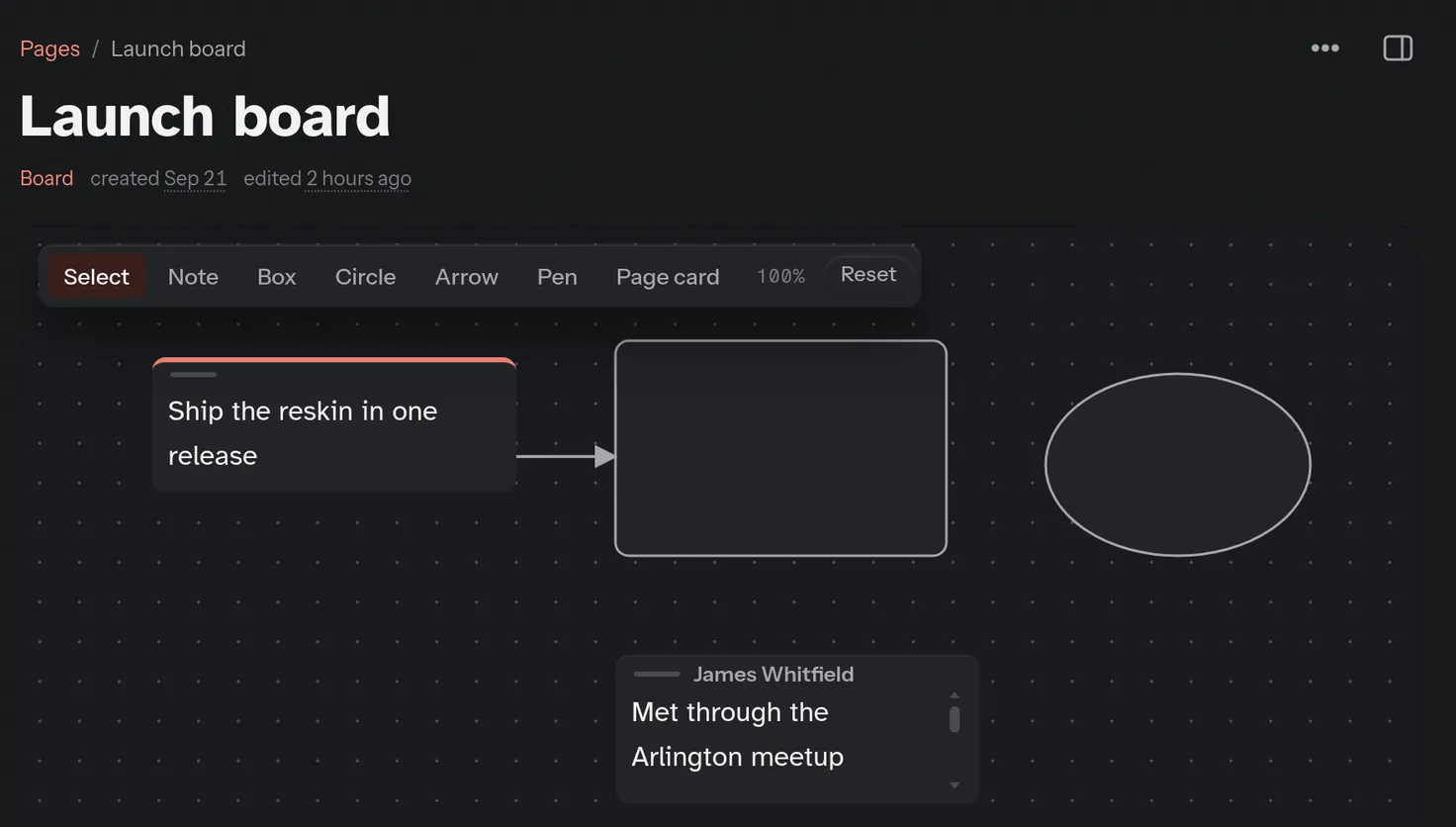
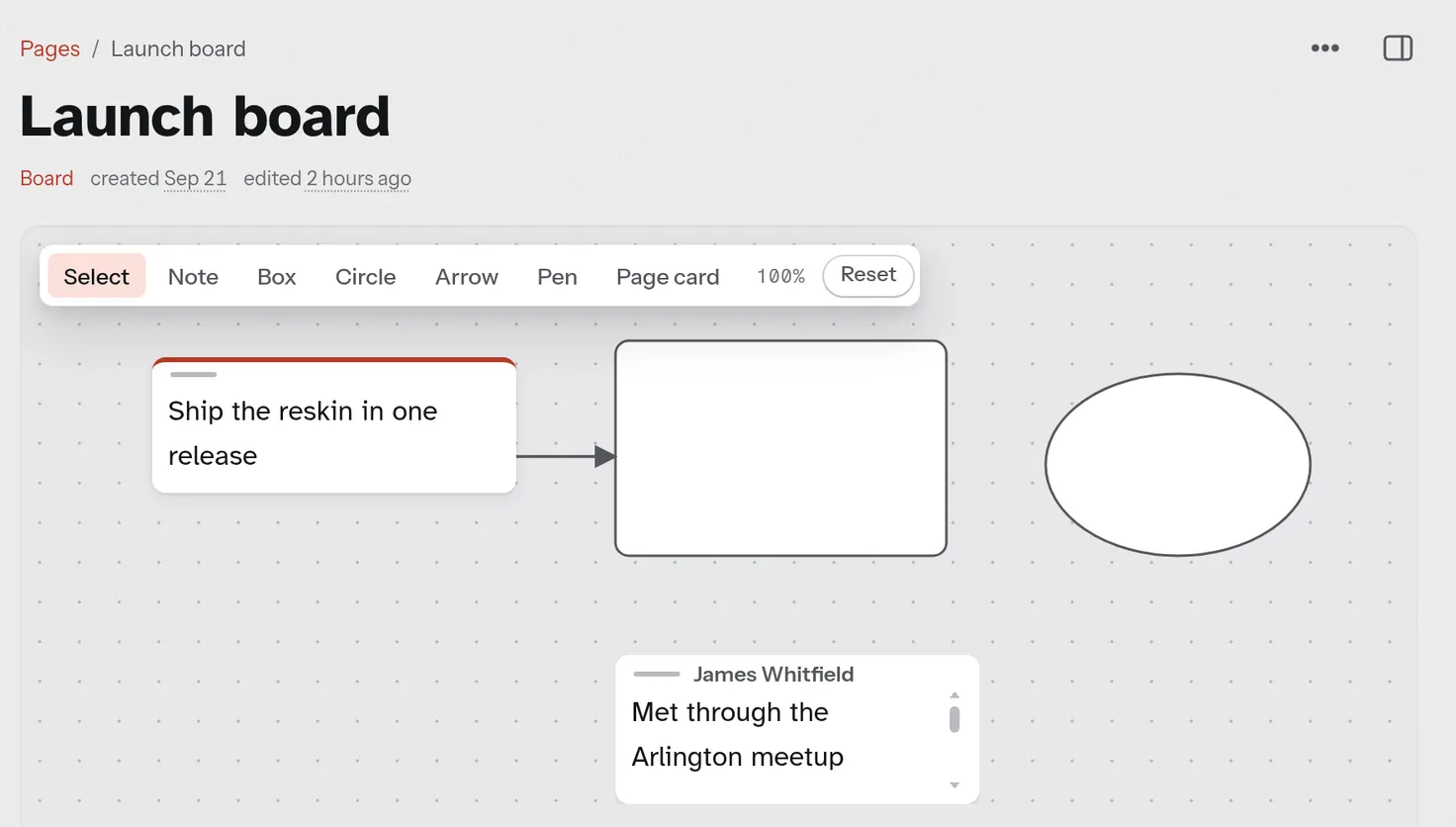
▾ beside + New on Pages, then Whiteboard, starts one, and /Whiteboard in a block starts one linked from it. A whiteboard is a page of shapes on a dotted canvas: notes, boxes, circles, arrows, pen lines, and cards that show a page. Pick a tool from its bar, or by its key: V select, N note, R box, O circle, A arrow, P pen, G page card. Drag a shape to move it and the empty canvas to move around; the wheel, or two fingers, zoom.
A note is a block like any other, so its links and tags count and search finds it. Pages lists each whiteboard under All, as a Board, and a board syncs like any other page. It has no shared link, and its shapes travel in Export a copy’s records, since Markdown has nowhere to put them.
Pages and their types
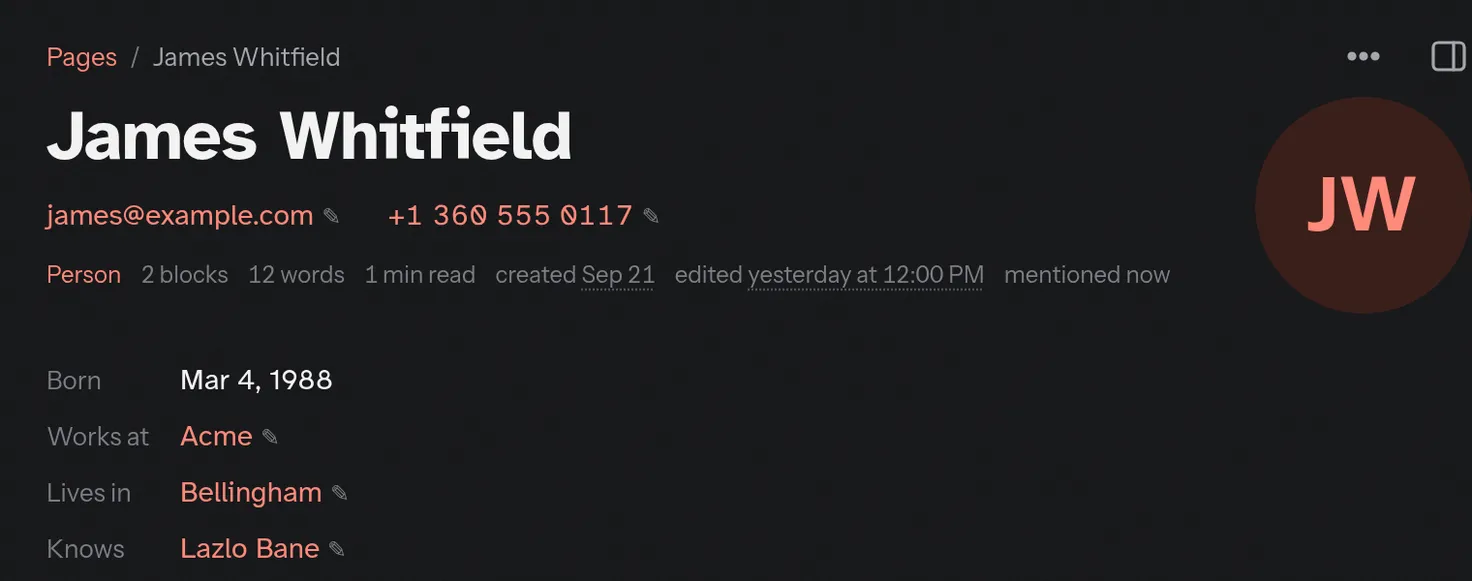
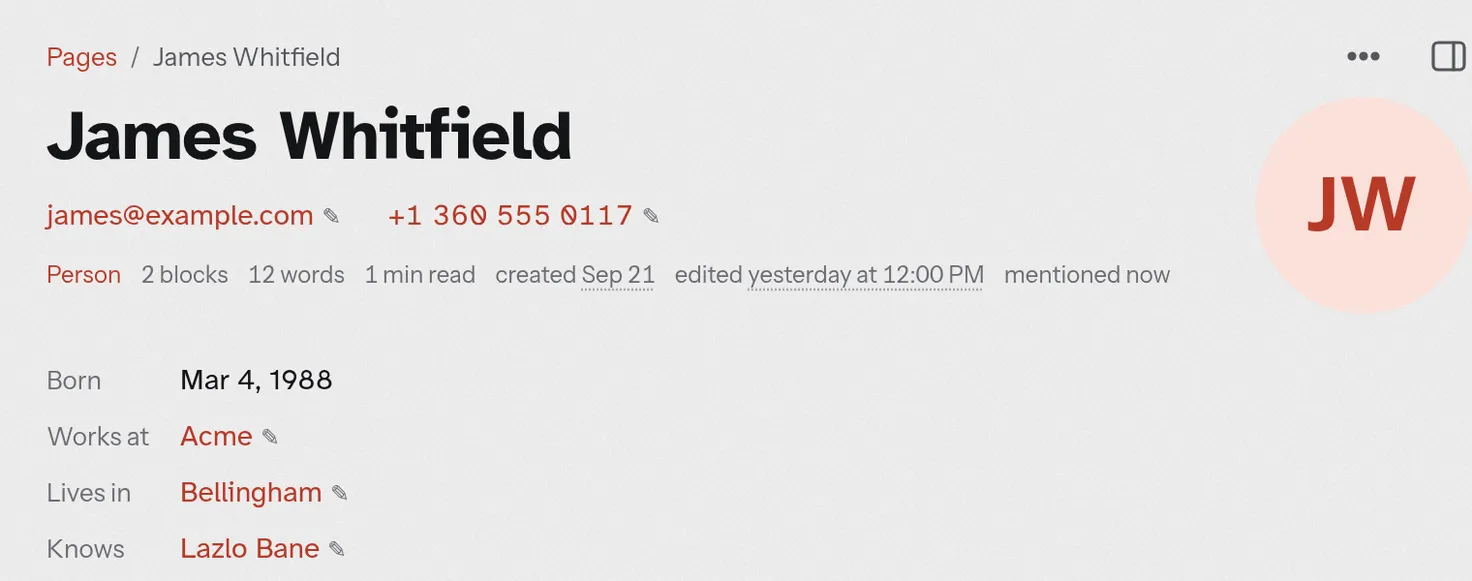
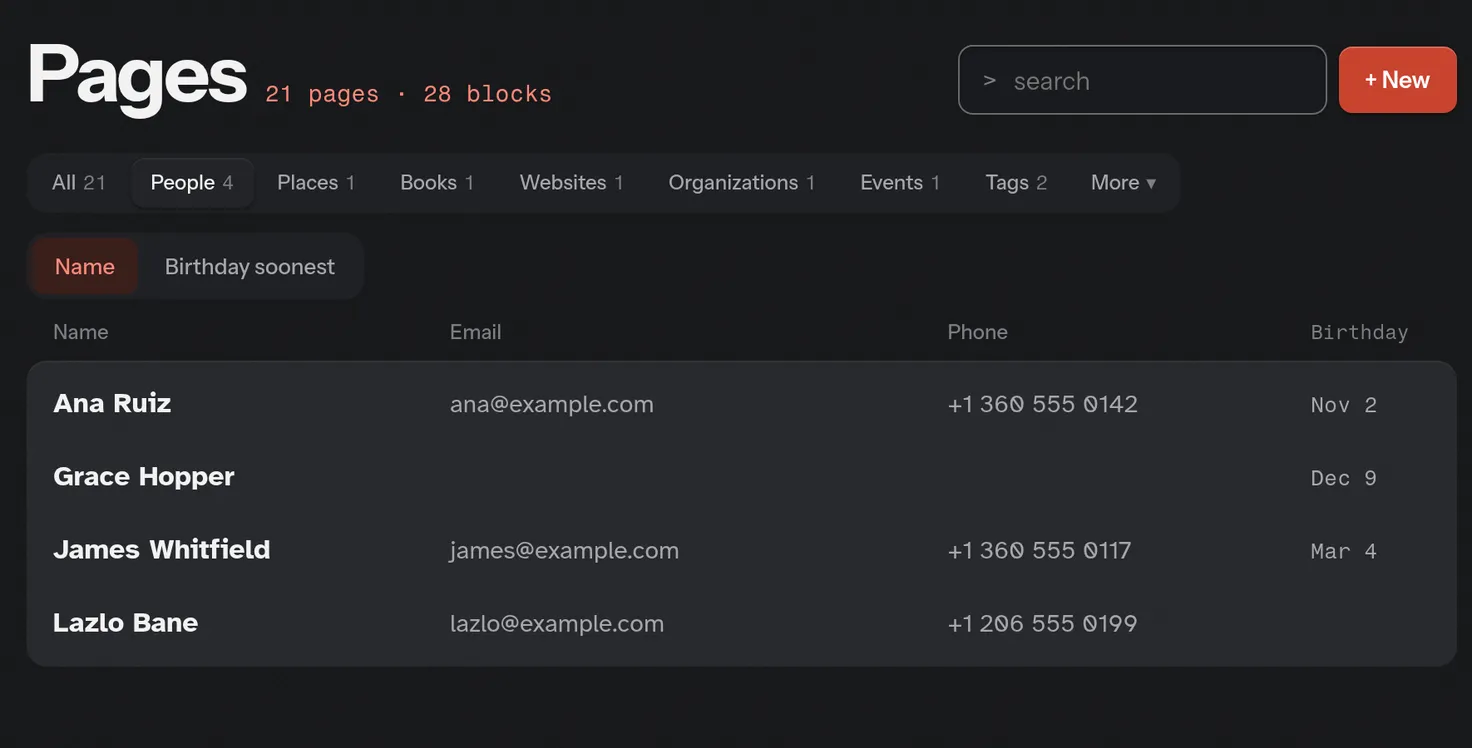
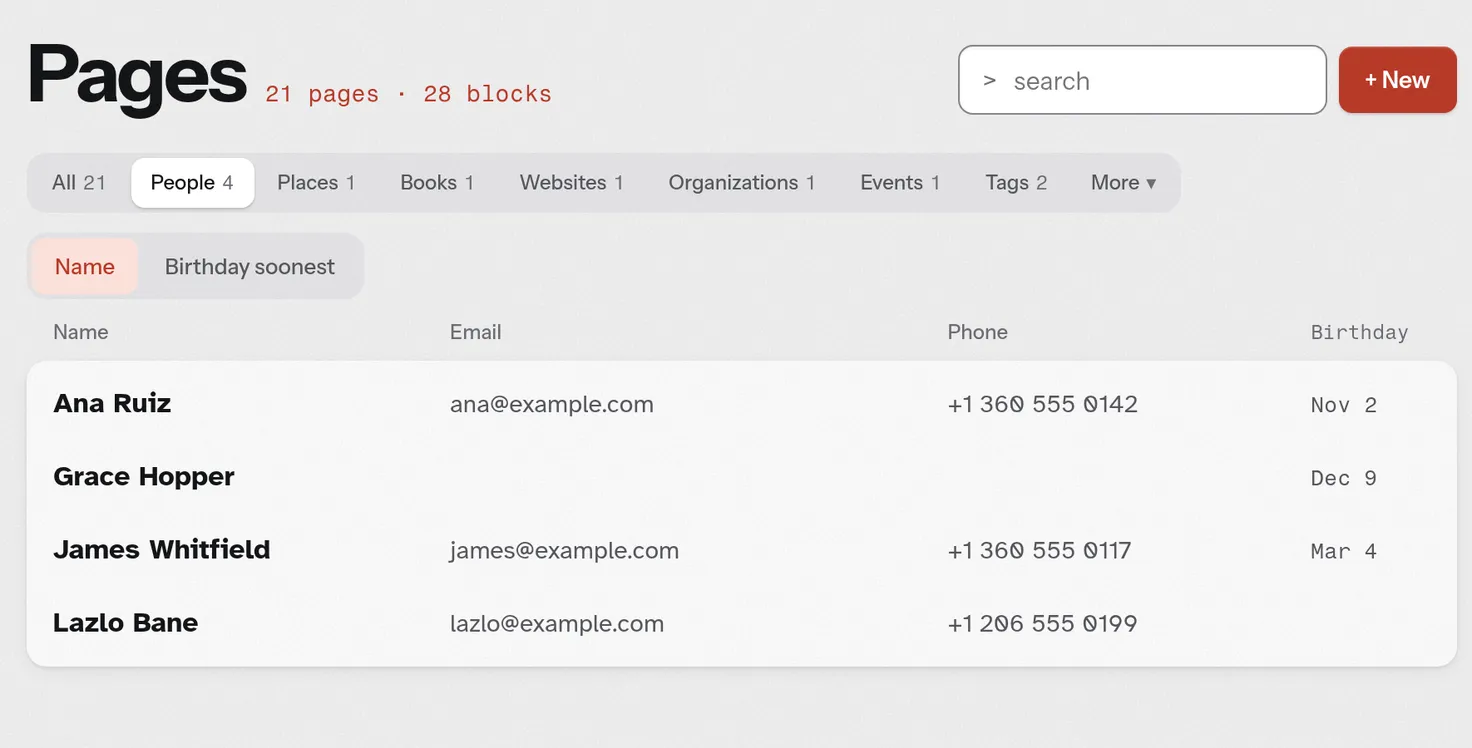
A page is made when a link first names it, or with New on Pages. Type…, in its ••• menu, makes it one of twelve kinds, or a plain Page again. Each kind has a tab of its own on Pages, and all but Tag have fields under the title:
- Person
- Email, phone, birthday, where they work, where they live, whom they know.
- Location
- An address, and a kind: a business, a school, a park.
- Book
- The author, to read, reading or read, and a rating.
- Website
- Its address and what it is about.
- Organization
- Its site and its address.
- Event
- The date, where, with whom, and a link.
- Artist
- What they are, where they are from, their active years, genres and members; the albums that name them, oldest first.
- Album
- By whom, released when, on what label; its tracks, length and catalogue number.
- Track
- By whom, on which album, how long; its number and ISRC.
- Movie
- The year and the director on one line, the runtime, genres, cast, writer and country, and your rating.
- TV show
- Its years and creator, seasons and episodes, the network, cast and genres, and your rating.
- Tag
- Its uses by week, the tags it travels with, and every mention.
A field that names a page links it: Acme, in a person’s Works at, finds that person among its backlinks. On Cloud Sync, Enrich under the fields looks the name up and fills in the rest, from Wikidata, Wikipedia, Open Library, MusicBrainz and the Cover Art Archive, a geocoder or the site itself, in one step Undo takes back. What each type gets.
Typed pages from a link
A link can make the page it names a typed one as you write: the type’s word and ::, the name, then any fields as key:: value, then +enrich, parted by commas.
[[tvshow:: Scrubs, rating:: 5, +enrich]]— A TV show you rate 5; Enrich fills in the rest.[[album:: From Zero, artist:: Linkin Park]]— An album, and Linkin Park an artist.[[event:: The Hayley Williams Show, date:: 2026-09-30, location:: White River Amphitheater, participants:: Hayley Williams, +enrich]]— An event on that day, at a location, with a person; Enrich fills in the rest.
Leave the block, or press Enter, and each link is applied: the page is made with its type and fields (the album’s Linkin Park is an artist, the event’s place a location), the link reads [[Scrubs]], and a notice says what was done, with Undo for all of it. A page you have keeps its type, and a field it has keeps its value; the notice says which. After [[movie:: and a name, the list under the block offers the type’s fields, then +enrich. Each type’s word:
- Movie
movie::- TV show
tvshow::,tv-show::ortv::- Album
album::; a track,track::- Artist
artist::, orband::for a band- Person
person::, oractor::,director::,producer::orwriter::for a person in that role- Book
book::; a website,website::- Organization
organization::ororg::- Event
event::; a place,location::orplace::
A name with a comma, in a field that names pages, goes in double quotes or in a link: location:: "Portland, OR". Every rule.
Cards over links
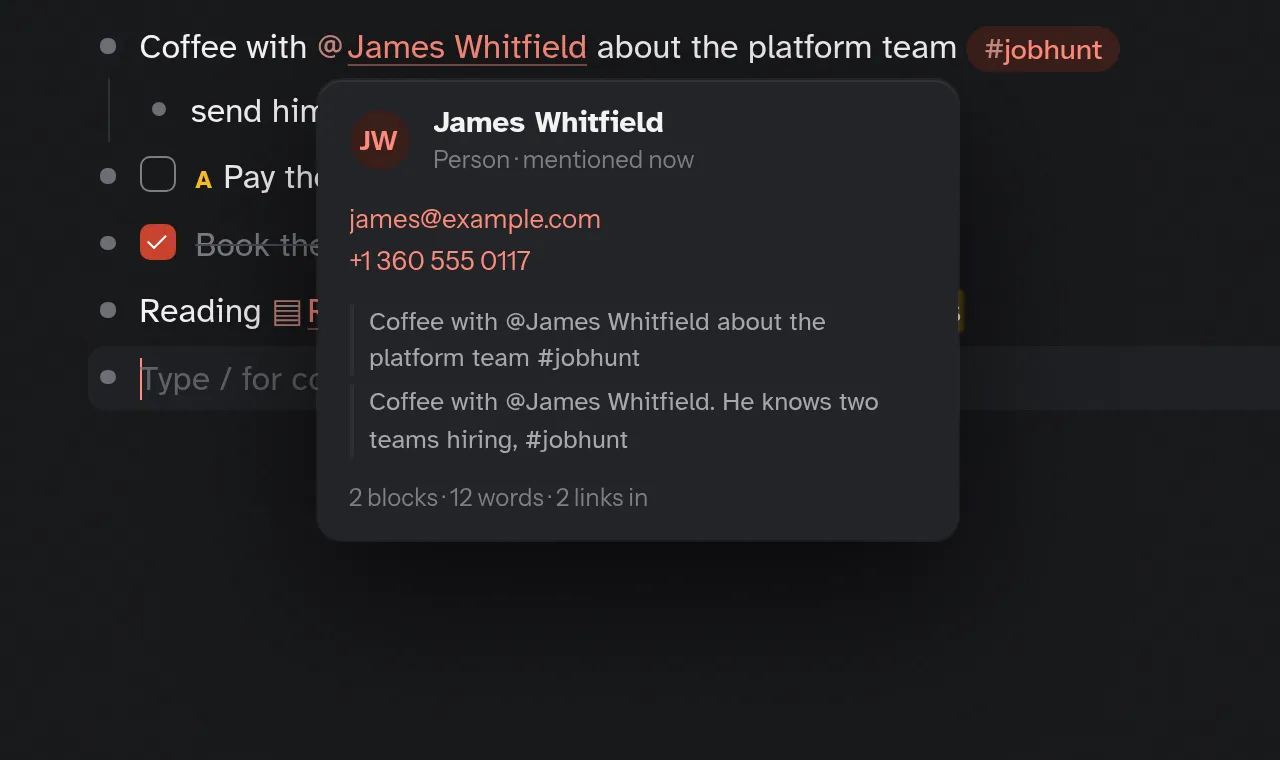
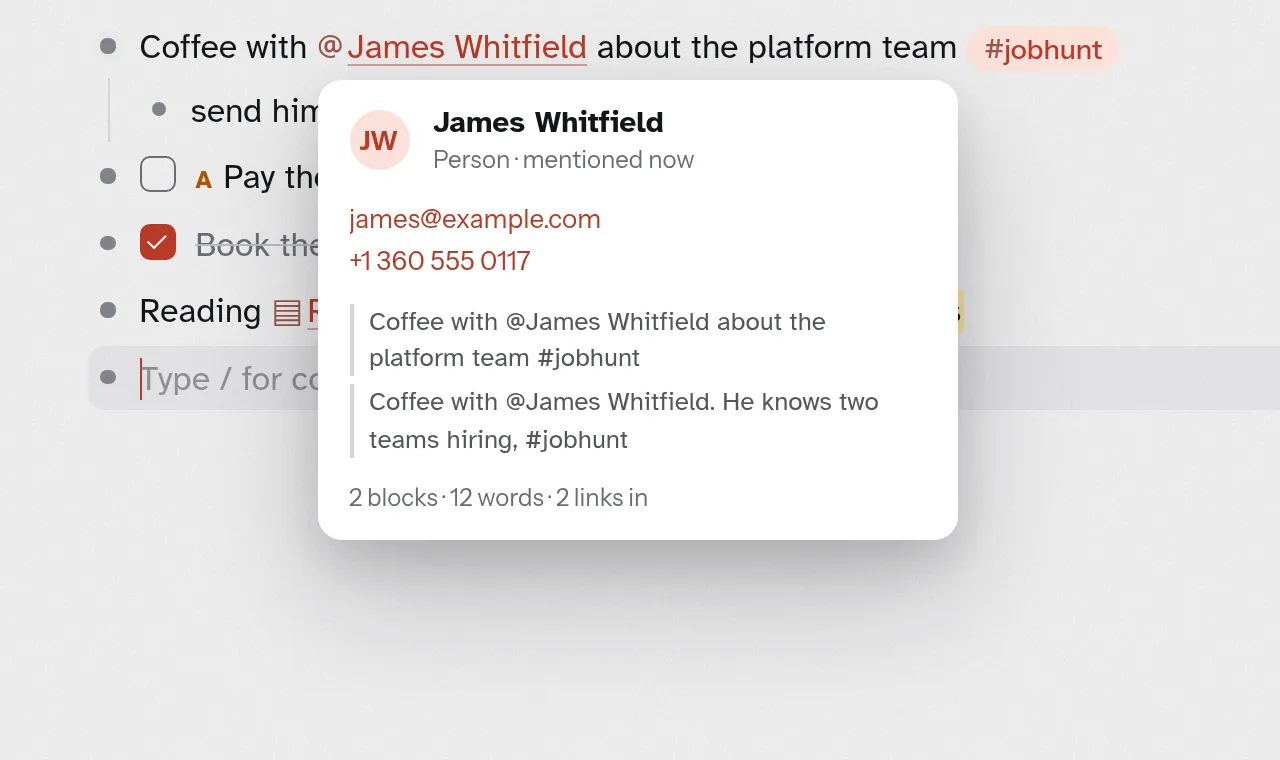
Rest the pointer on a link, or Tab to it, and a card says what the page is before you go: a person’s email and who mentions them, a book’s author and rating, a tag’s newest uses, any page’s first lines. On a phone the first tap shows the card and a second opens the page.
Finding things
⌘K, or / anywhere you are not typing, opens one search over pages, blocks, tasks and files. The rest is a place in the rail:
- Pages
- Everything, then Loose ends: the empty pages nothing links to, and the links to pages nobody has written; then a tab for each type, Tags and Files. The tabs that fit share one row and the rest are under More. + New makes a page of the tab’s type in one press, and ▾ beside it any type, or a whiteboard.
- Tasks
- The open ones, by when they fall.
- Calendar
- Every dated block on a month, below.
- Graph
- What your links say: what this week brought up that the month before did not, the pages you come back to, the ones linked and never written, and the groups your pages make, each a list that opens its pages. The Map draws them; your writing’s growth, streak and busiest days come last.
The Calendar
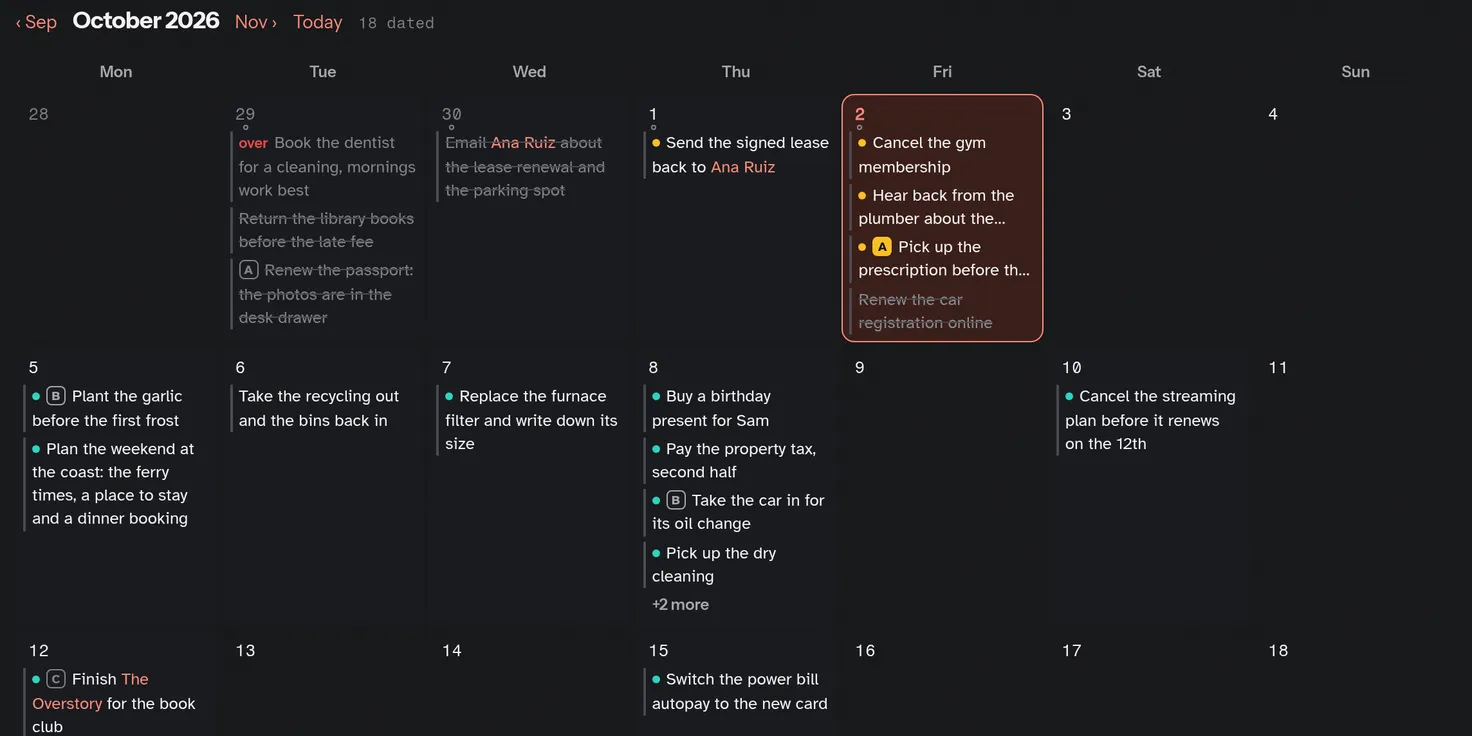
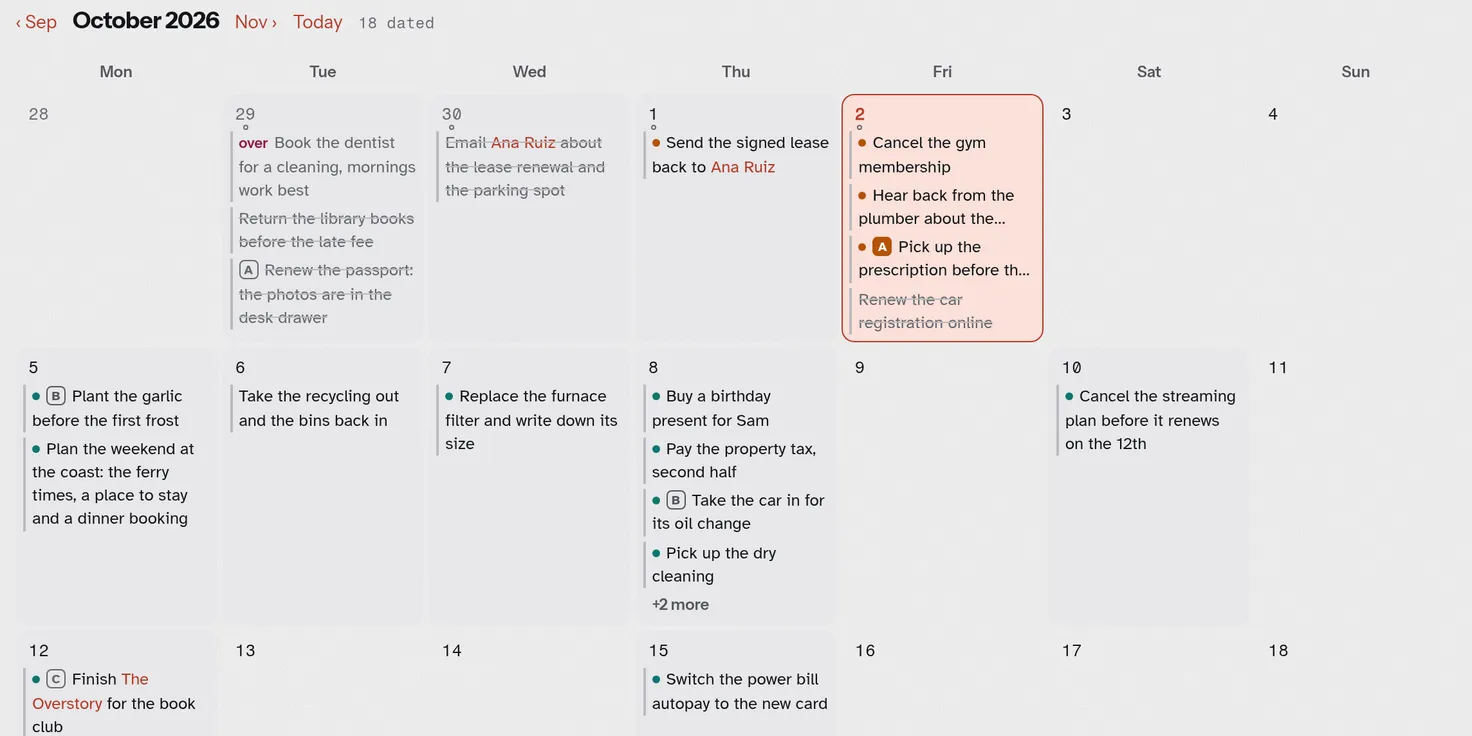
Every dated block on a month, at ⌘4 in the installed app. Green is ahead, amber is yesterday to tomorrow, and red is a task two days late or more, with over beside it so the color is never alone. Red means danger in Twig: something that destroys, or a task that late.
Each day shows its tasks still to do, and its dated notes, in their own words; a finished task is on its own page, not here. Choose a day to see its list, beside the month on a wide screen and under it on a smaller one. Drag a task to another day, or use Move…, which works under a finger too. A page with dated blocks has a Calendar of its own beside Outline. Its weeks start on your device’s first day of the week, or on the one chosen in Settings › Appearance › Week starts on. Every rule.
Backlinks
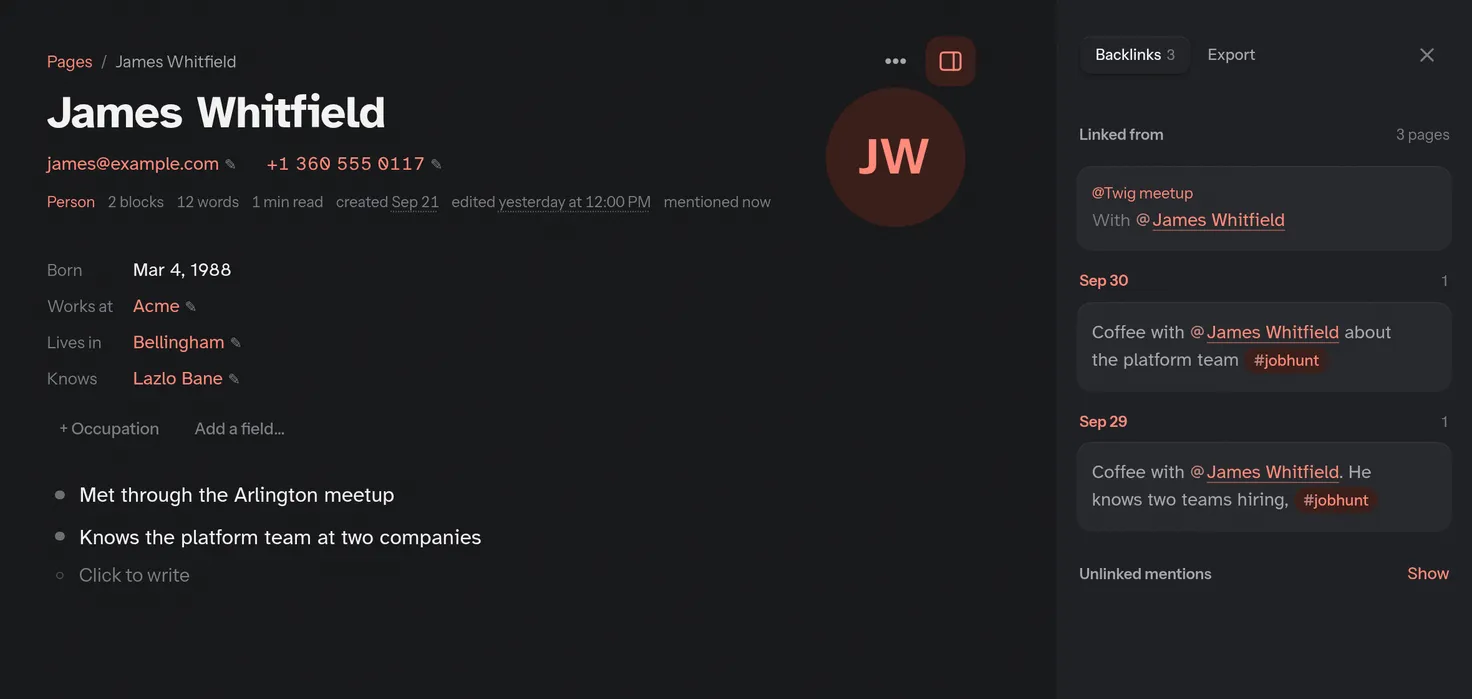
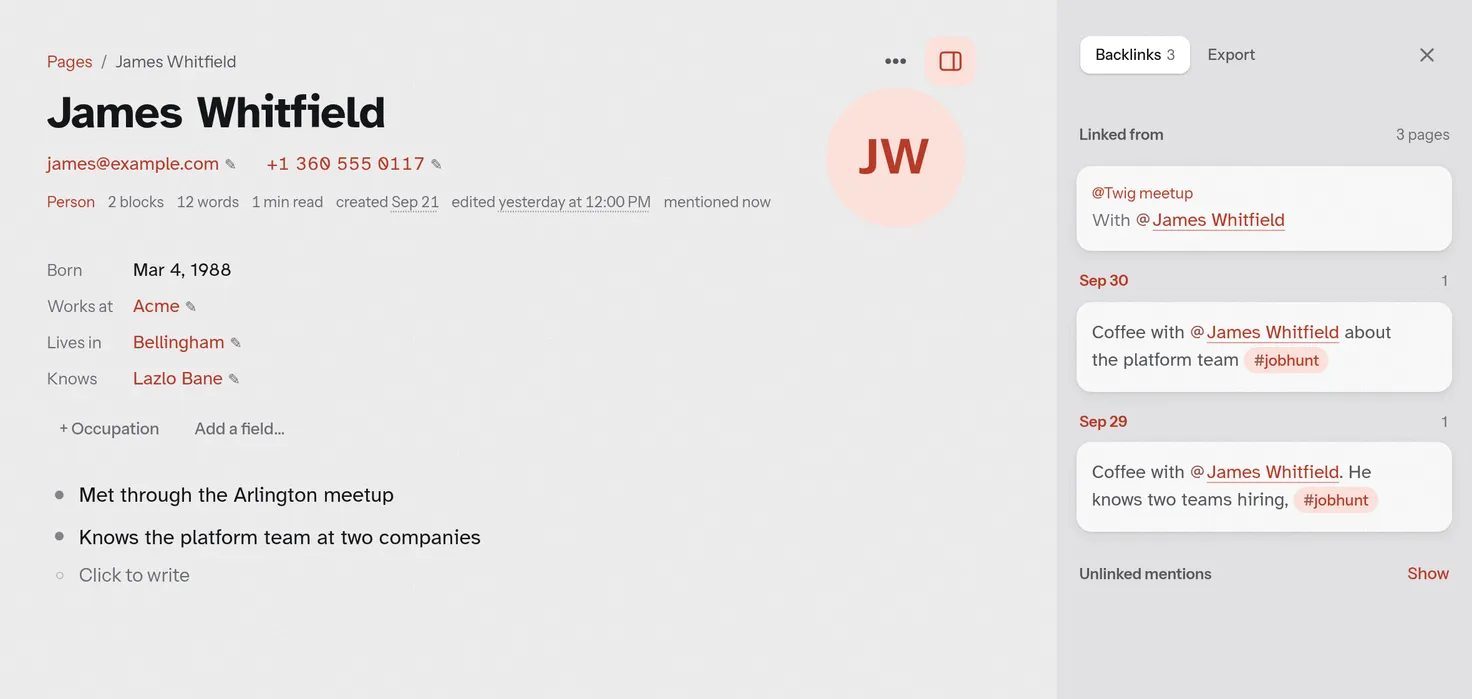
Every page has a sidebar: the button at the end of its title row, ⌘⇧E, or /Sidebar. Backlinks lists the blocks that link here, a group for each page or day. Under them, Show finds the blocks that name the page without linking it, each with Link to make it one.
750 words
Three pages a day on a plain surface: 750 words in the rail (first under More on a phone), or ⌘⇧7. The count fills three segments on its way to 750, and the foot shows the month, a square a day, with your current run and the longest. The words are a page of their own, 750/ and the date, so they sync, search and export like any page.
To read a past day, tap its square in the foot, or ‹ beside the date for the last day you wrote. It opens on the same screen to read, with its count and its After; ‹ and › go to the days with words either side, the arrows by the month’s name go back a month, and Today returns to today’s words. Open as a page takes it to the outline, where it is edited like any page.
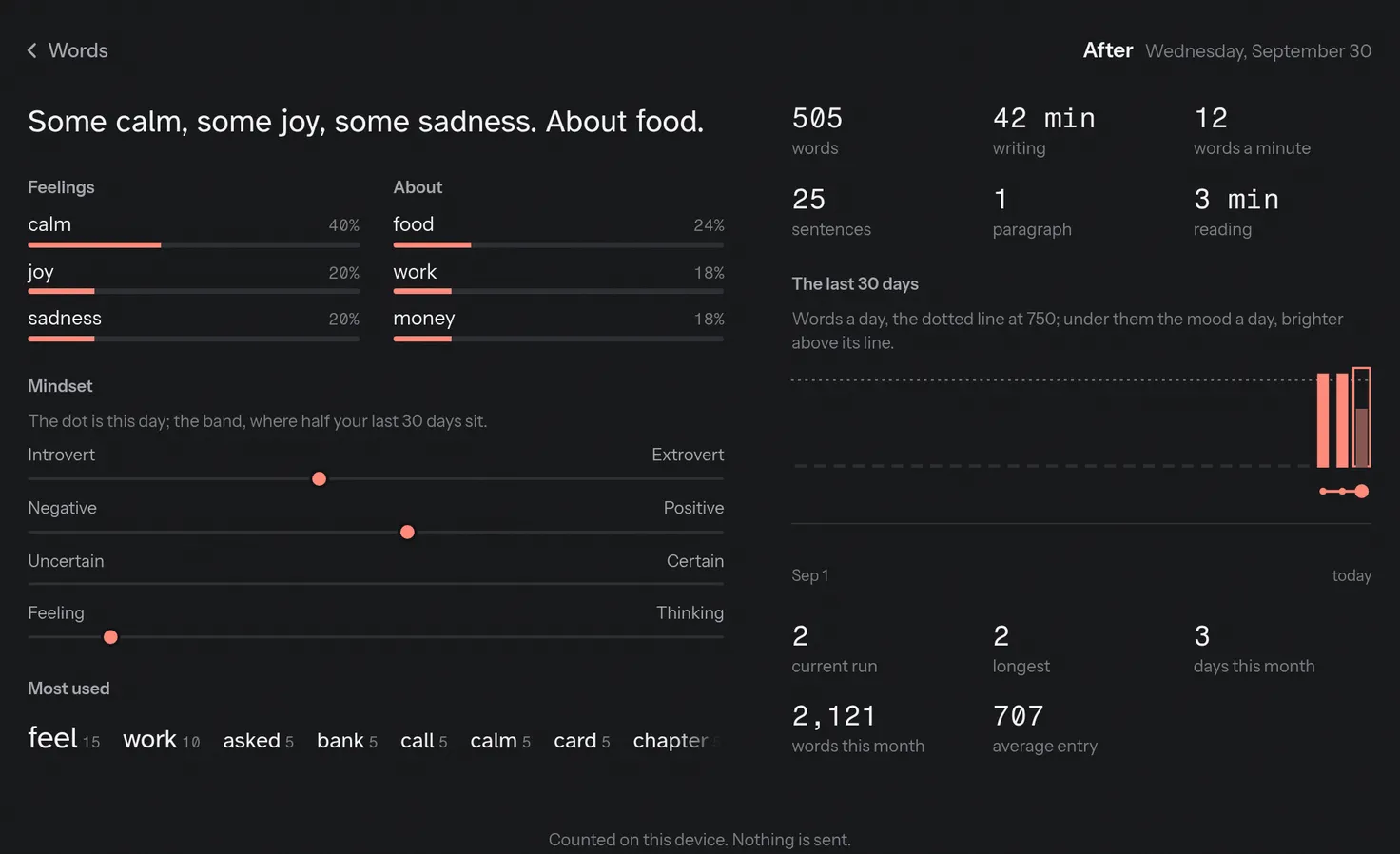
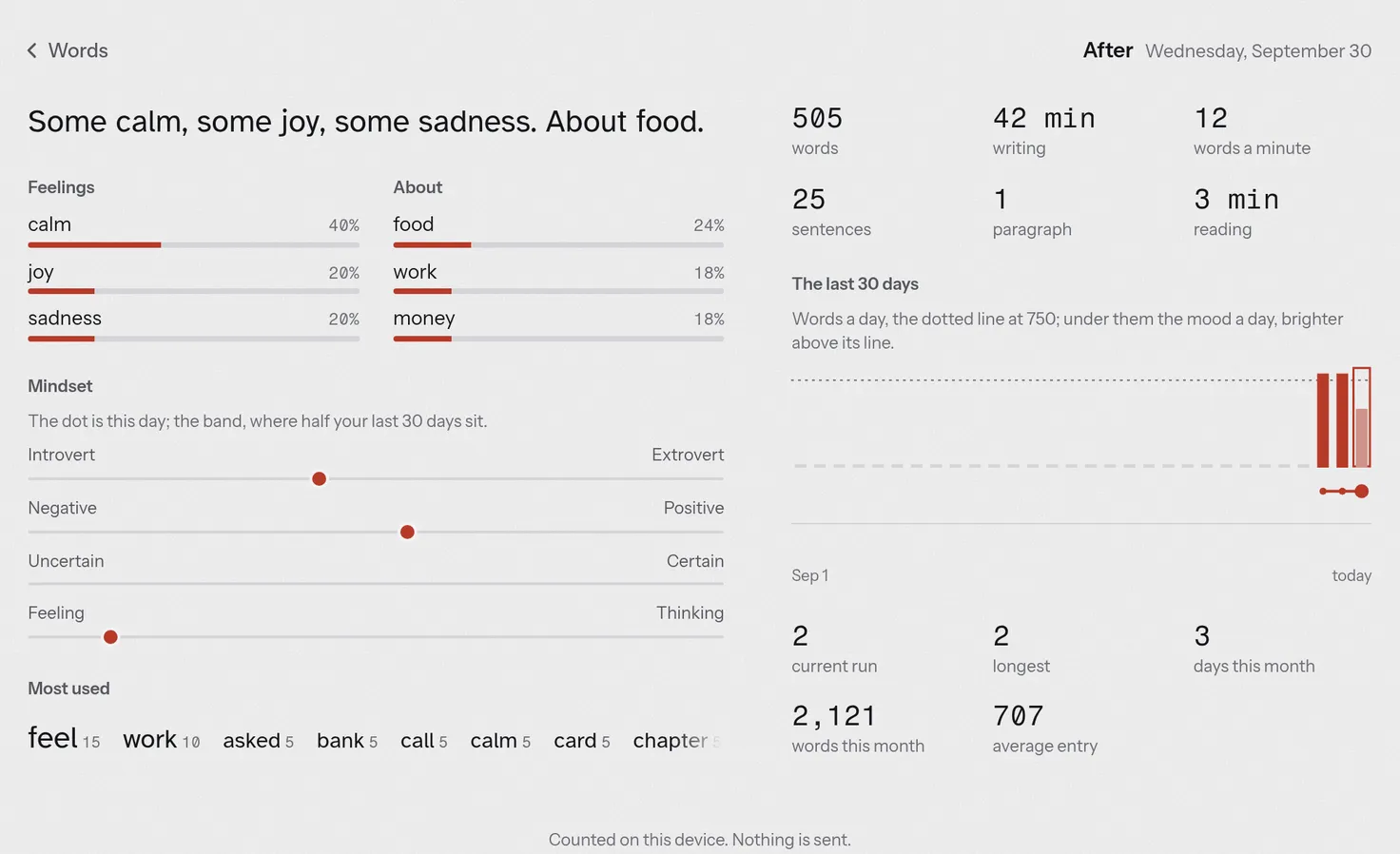
Once the day has words, After, at the foot, reads it back: what you felt and what it was about, how the day sits against your usual, the words you leaned on, and the last 30 days. It is counted on this device from English word lists; nothing is sent. All of it.
Share, publish, export
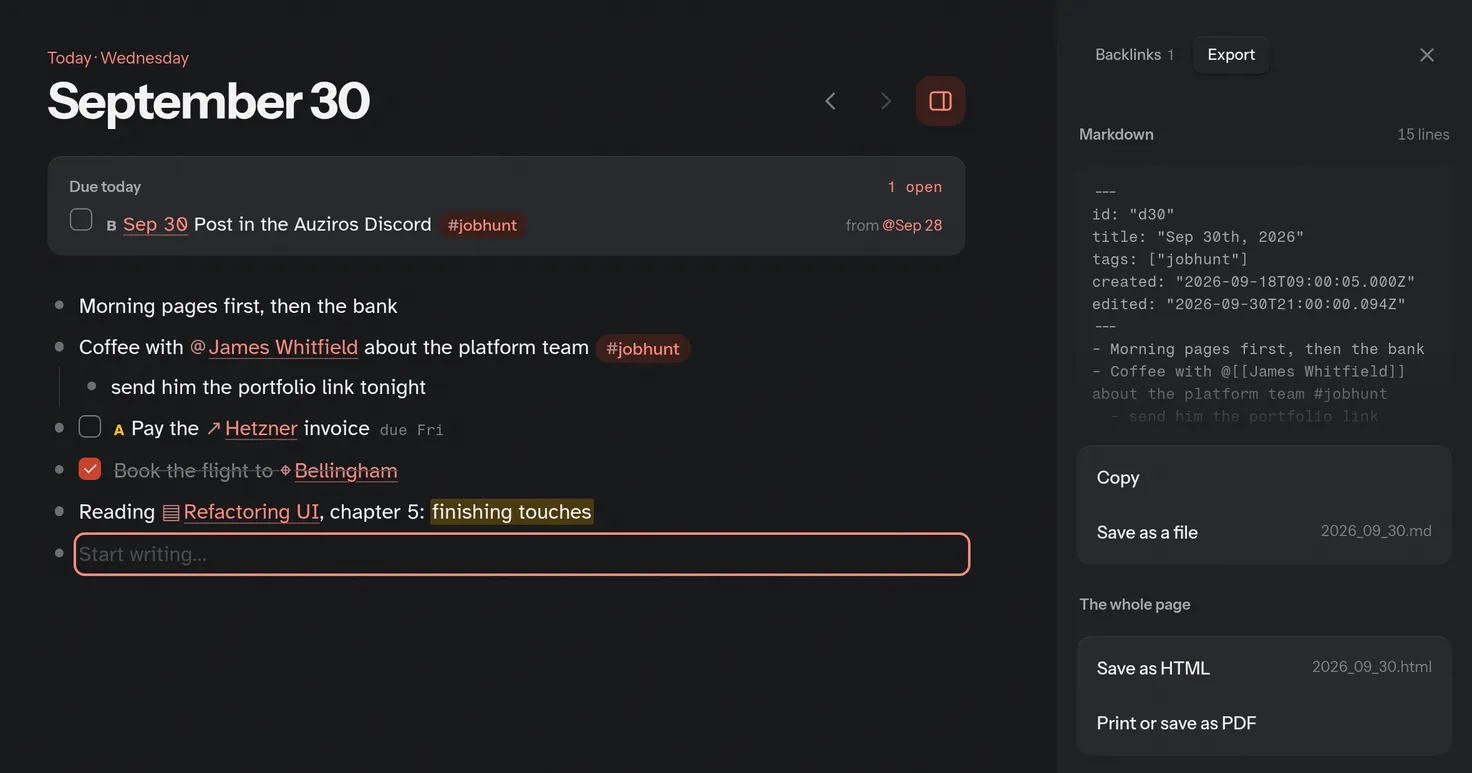
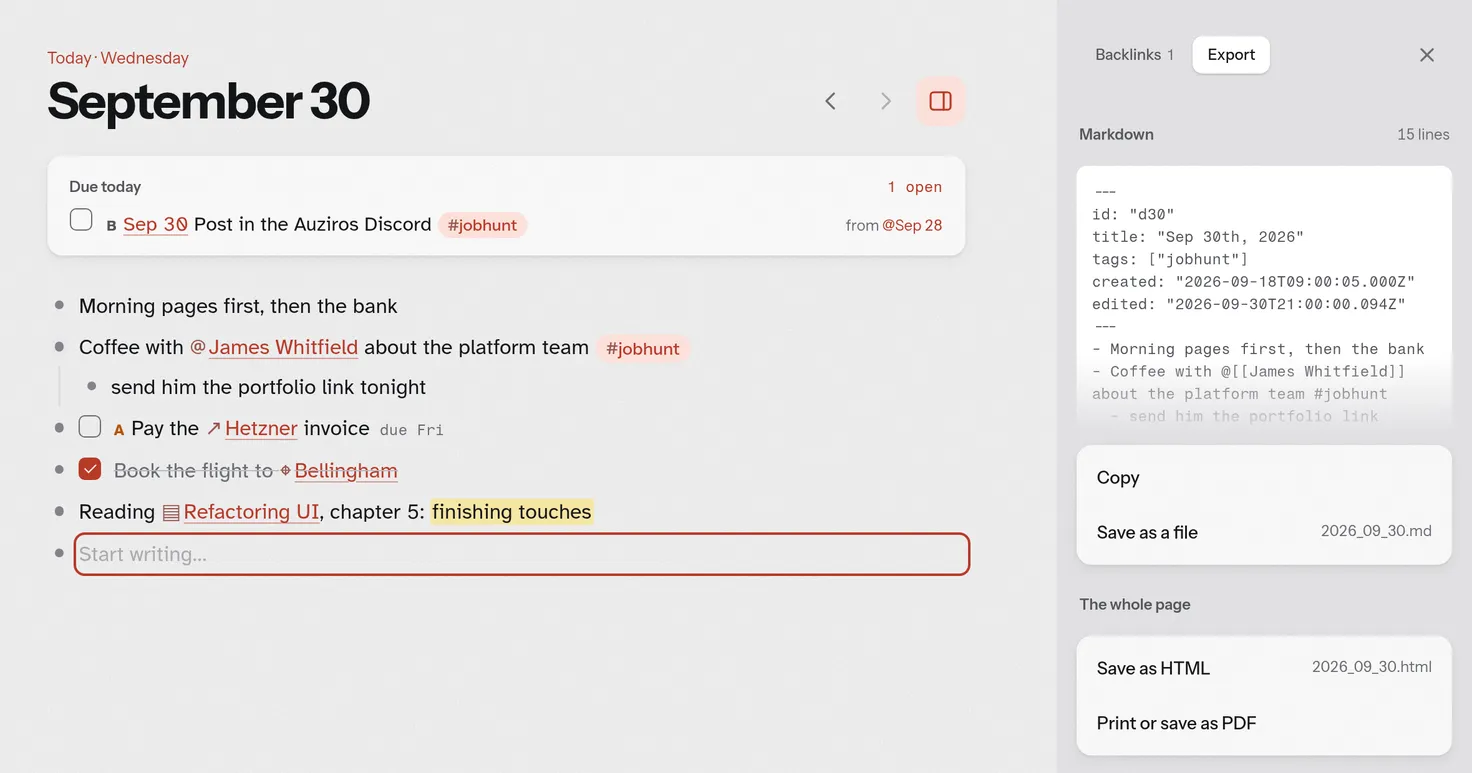
- A read-only link
- Share a read-only link, in the page’s ••• menu, copies an address anyone can open without an account. Stop sharing takes it down. What a reader sees.
- Your site
- Publish to your site puts the page on a site of your own; the first time, you choose its name. Settings › Your site holds the rest, a Docs layout among it. Publish.
- With the pages it links to
- Publish with linked pages, beside Publish, lists them, each ticked but journal days, 750 words pages, tags and pages tagged
#private, and names every page and file that goes public before you press. Unpublish with… lists what it will take back down before it does. Publish with linked pages. - One page
- Export, in the page sidebar: Markdown to copy or save, a standalone HTML file, a print, and, when the page has files, a zip with them.
- Everything
- Export a copy, in Settings › Data: a zip of every page as Markdown and the records behind them, which Import a zip restores.
Links and a site need Cloud Sync; export never does. Print and export.
Assistants
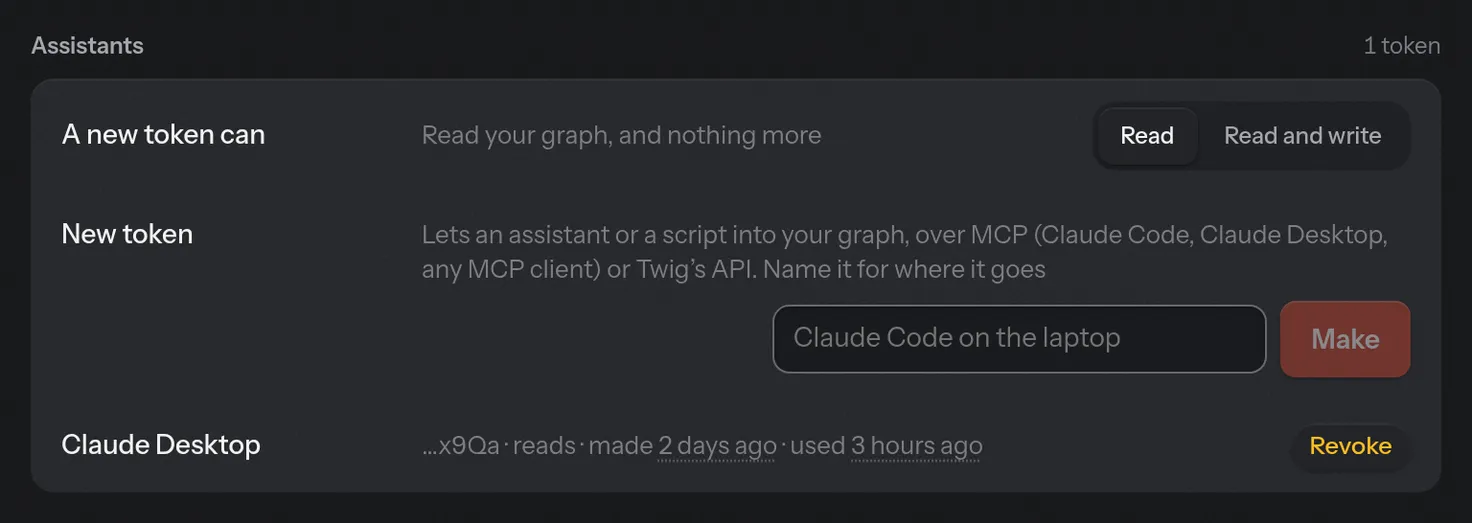
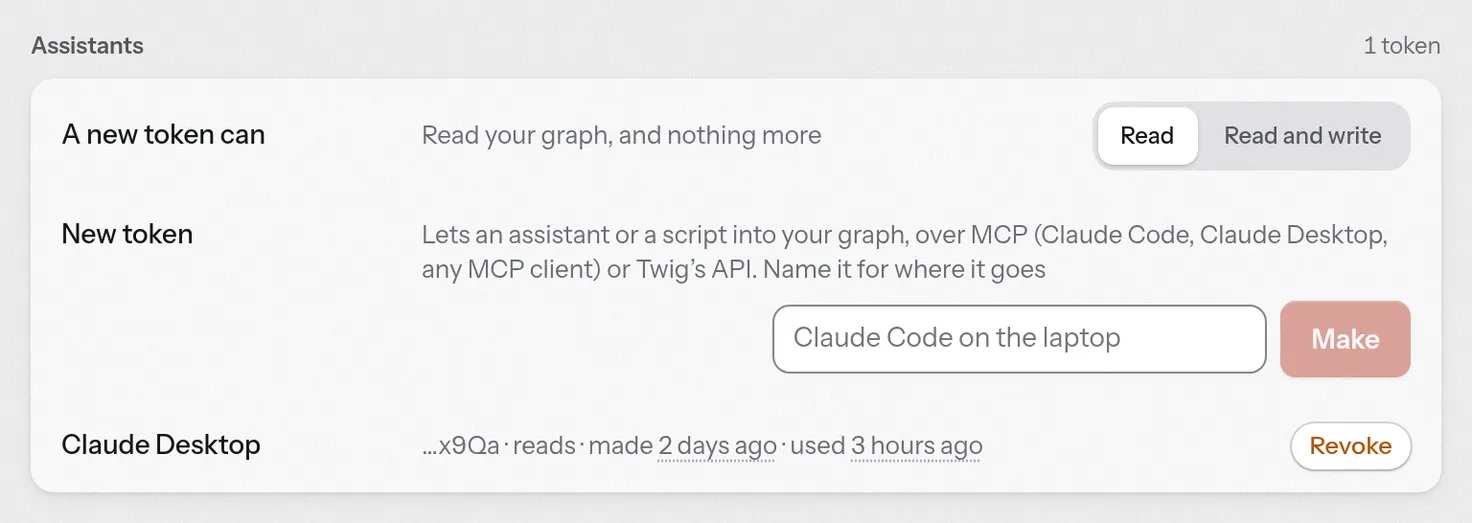
An assistant such as Claude can read your graph, and add to it if you let it. In Settings › Assistants (Cloud Sync), make a token that reads, or reads and writes. It is shown once, with the command for Claude Code and the JSON for any other client.
- It reads
- Search, pages, days, tasks, and typed pages with their fields, as the server has them after the last sync.
- It writes
- A block, a page, a task’s state, a block’s words, a field. Never a delete, a move or a rename, and never a file.
- You see it
- Settings lists what assistants and scripts changed, with Revert on each.
- You end it
- Revoke, on the token’s row, turns away its next request.
On a phone and an iPad
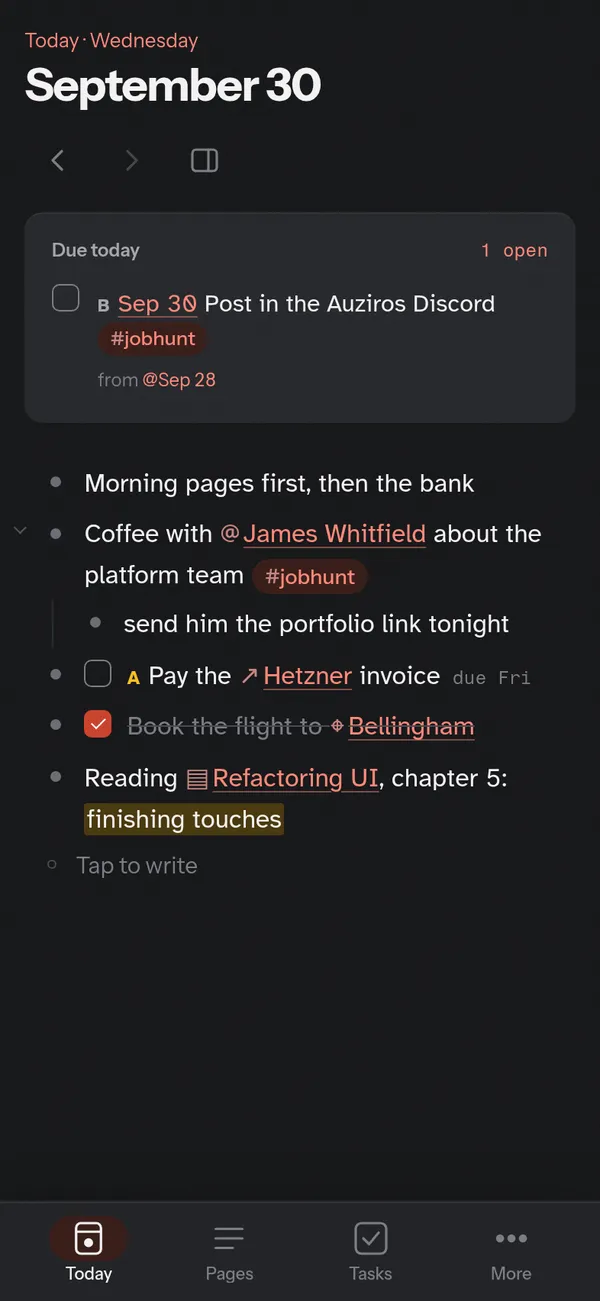
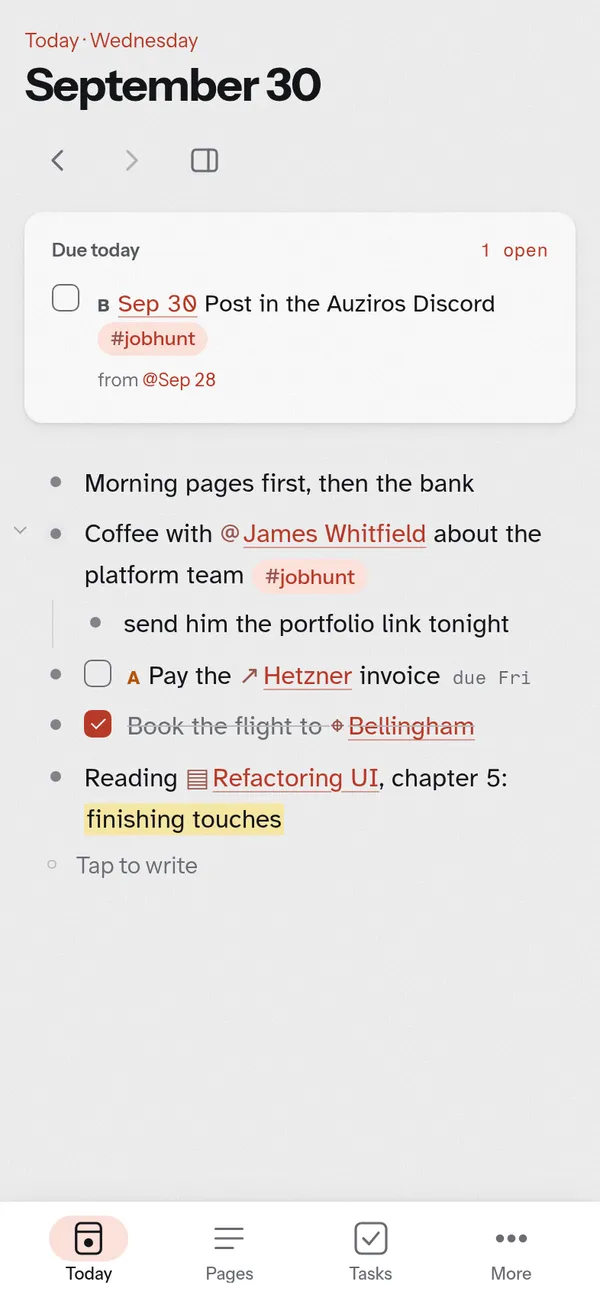
- Install
- From the third visit Twig offers to install itself; on an iPhone or iPad it says to tap Share, then Add to Home Screen. Installed, it opens standalone, without the browser around it, and works offline.
- The tab bar
- Today, Pages, Tasks, Starred and More. Starred opens Favorites & Recents: your pinned pages and the ones you were just on. More holds the rest: 750 words, Calendar, Graph, Settings, and Search at the bottom, under your thumb. Plugins and Cloud backup are in Settings › More.
- The editing bar
- Rides above the keyboard while you write: outdent, indent, todo,
@,#and/first, then scroll it for a file, move up and down, today, undo and redo. - Taps
- A tap on a link shows its card and a second opens it; a tap outside a sheet closes it; Back closes the page sidebar, which a phone shows as a sheet. Boards and the Calendar move a card with Move….
- An iPad
- Under 834 points wide it is laid out as a phone; from there to 1099 it keeps the rail, with names under the icons, beside the phone’s page layouts; wider, as a desktop.
Keys
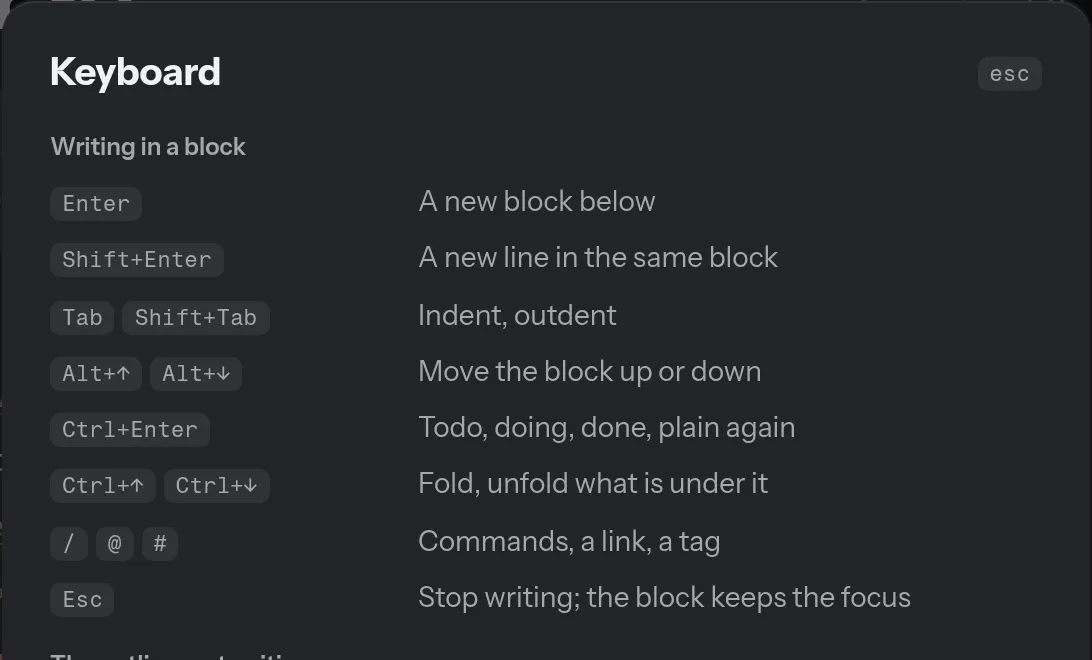
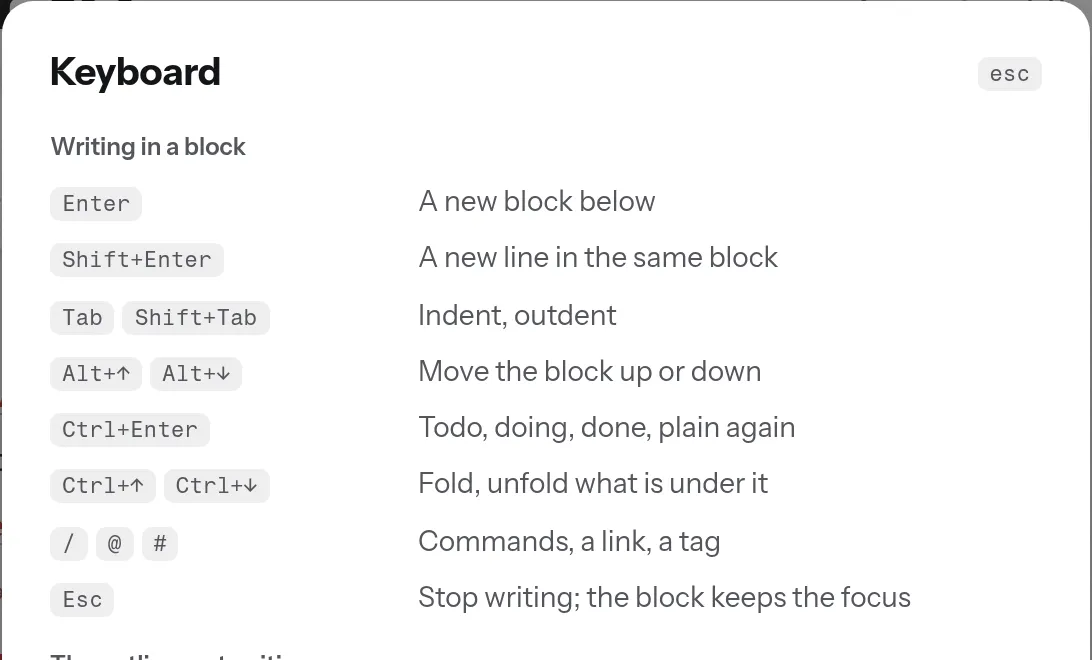
Press ? on any screen for the keys that work there, then the ones that work everywhere. The ones to learn first: ⌘K to search, ⌘⇧E for the page sidebar, ⌘⇧7 for 750 words, ⌘⇧L for dark and light, and in the installed app ⌘1 to ⌘5 for the rail. Ctrl stands in for ⌘ off a Mac. Every key.
Plugins
Plugins, in Settings › More, lists what ships with Twig: Install, a switch to turn one off, and Remove. Anything else installs from an address. A plugin runs with Twig’s own access to your graph, so read what its card says it reads, changes and sends before you install it. The marketplace.
When something looks wrong
- A screen breaks
- It says so, with Try again, which saves what you typed and reloads Twig on Today. Your notes stay on the device.
- An update
- A new version brings up the update bar with what changed; Restart now loads it. Updates.
- Sync
- Backup failed, in amber, is its own retry. A block written on two devices shows both versions, to keep either or both. Written on two devices.
- Before anything drastic
- Export a copy, in Settings › Data. With Cloud Sync, Cloud backup restores the graph from a daily snapshot.
- Reporting it
- Tell whoever runs your Twig. On usetwig.app that is the forge at forge.unfuck.cloud/private/twig/issues, for people with an account there. The version at the foot of Today or Settings, and the error a broken screen shows, are what a report needs.